
Outlook Not Required: Backup Exchange Server 2019 Mailboxes to PST
Backup Exchange Server 2019 mailboxes to PST without Outlook. Securely export emails, contacts, calendars, and more with simple, reliable methods.

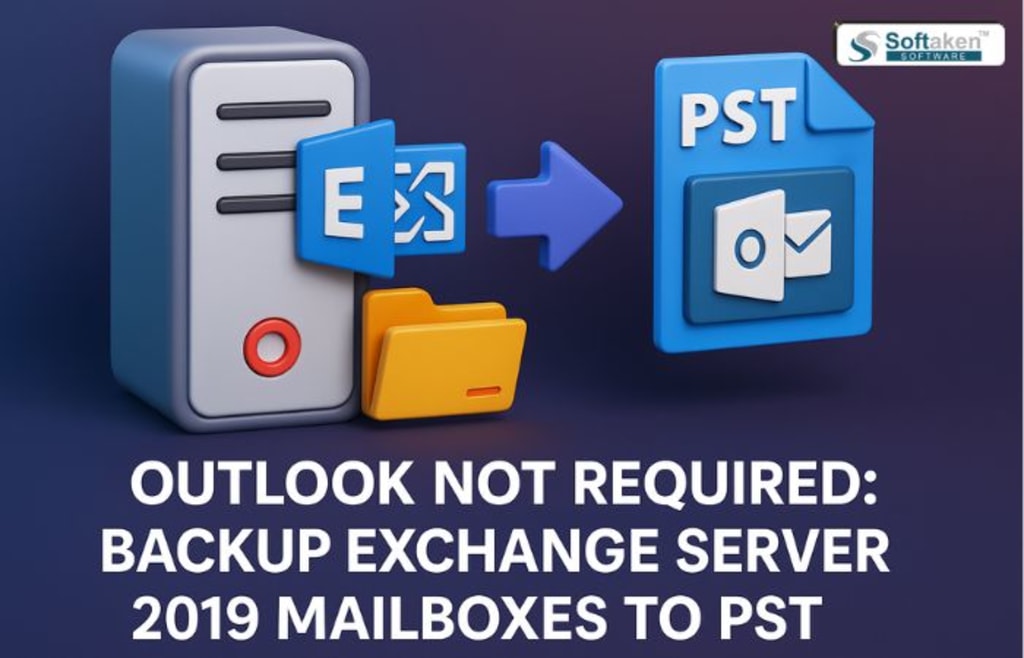
Backing up Exchange Server 2019 mailboxes is critical to data security and compliance. Many users believe Outlook is required for exporting Exchange mails to PST. But this is not true. You can backup your Exchange 2019 mailbox without using Outlook.
In this blog post, you will learn two simple ways to do it:
- A manual method utilizing Exchange Admin tools.
- An automated approach utilizing the Exchange Server Backup & Restore tool.
Let's start with why users backup their Exchange mailboxes.
Click Here to DOWNLOAD NOW
Why Backup Exchange Server 2019 Mailboxes?
Backing up your Exchange 2019 mailbox will help you:
- Avoid unintentional email loss.
- Keep a local copy for legal and audit purposes.
- Transfer mailboxes to a new server or client.
- Archived older data helps to free up server space.
Having PST backups also provides you with more flexibility when relocating or upgrading your systems.
Manual Method to Backup Exchange 2019 Mailboxes to PST
You can export mailboxes to PST using the Exchange Administration Centre (EAC) or PowerShell (Exchange Management Shell).
Here's how to do it manually and without Outlook.
Step 1: Assign Mailbox Import Export Role
By default, the Mailbox Import Export Role is not allocated to a role group. You must add it first.
- Open the Exchange Admin Centre (EAC).
- Go to Permissions > Administrative Roles.
- To establish a new role group, click the + Add button.
- Name the group (for example, "Export PST Role").
- Click + under Roles and then Mailbox Import Export.
- Add your administrator account under Members.
- Save and restart the Exchange Management Shell.
Step 2: Prepare a Shared Folder for PST Export
You will need a shared folder to save PST files. Ensure that Exchange Trusted Subsystem has full permissions.
- Create a folder (for example, C:\PSTExport).
- Right-click and select Properties, then Sharing, and finally Advanced Sharing.
- Share the folder and configure rights.
- Assign Read/write access to Exchange Trusted Subsystem
- Use a UNC path, such as \\YourServer\PSTExport.
Step 3: Export Mailbox to PST via PowerShell
Enter this command in Exchange Management Shell:
New-MailboxExportRequest -Mailbox "username" -FilePath "\\YourServer\PSTExport\username.pst"
Replace "username" with your mailbox name.
Repeat this for each user that you want to back up.
Step 4: Monitor Export Progress
To verify the export status, execute the following command.
Get-MailboxExportRequest
To see the detailed status:
Get-MailboxExportRequest | Get-MailboxExportRequestStatistics
Step 5: Retrieve the PST Files
Once the status is completed, navigate to the shared folder and copy the PST files to a secure location.
Limitations
- Only compatible with Exchange on-premises.
- Requires PowerShell knowledge
- Time-intensive for several users.
- It can fail if the permissions are incorrect.
- There is no way to filter or schedule backups.
- PST file corruption is possible if the procedure is halted.
For those who require a faster and more dependable method, there is an easier solution.
Automated Method to Backup Exchange Server 2019 Mailboxes to PST
If you don't want to deal with PowerShell commands or permission issues, consider using the Softaken Exchange Server Backup & Restore Tool.
This software allows you to back up multiple emails from Exchange Server 2019 to PST with a few clicks. It connects directly to the server and retrieves all mailbox data, including emails, contacts, calendars, and more.
You do not require Outlook or any technical knowledge. Simply enter your server credentials, choose the mailboxes, choose the format (PST), and start the backup. It also provides selective backup, folder preview, and batch exporting options. The tool maintains the original folder structure and data integrity.
It's a simple, quick, and safe solution to backup your Exchange Server 2019 mailbox.
Key Highlights of Application
- Make backups of multiple mailboxes, including public, archive, and primary folders.
- Store the Exchange mailbox backup as a PST file.
- Filter backup data based on date range and email type.
- Write a thorough report on the backup process.
- Opens PST files in all versions of Microsoft Outlook.
- There are several options for scheduling backups.
- MSG, EML, and other mailbox formats can be restored.
- Preserve data integrity and mailbox folder hierarchy.
- Exchange backup and restore do not require Outlook.
- With job-based backup, you don't have to constantly connect.
Step-by-Step Guide
- Download the Softaken Exchange Backup & Restore Tool.
- Exchange Server mailboxes can be added.
- Enter the domain name, username, and password.
- You can choose which mailboxes to export.
- Apply the backup filters and then launch the backup.
- After the backup, save the report.
Last Word
Outlook is not required to perform Exchange Server 2019 mailbox backups to PST. Although the PowerShell manual technique is free, it is intricate and prone to mistakes. Exchange Server Backup & Restore simplifies the process if you're looking for a quicker and more secure solution.
Select the approach that best suits your needs as a business, your time, and your skill set. Don't put off backups, though. Security, portability, and peace of mind are guaranteed when you have PST copies of your Exchange data.
About the Creator
Patrick Myers
I'm Patrick Myers, a digital marketing strategist and content writer. I merge analytics with creativity to craft engaging content, boost SEO, enhance visibility, and drive results through innovation.
Keep reading
More stories from Patrick Myers and writers in 01 and other communities.
Efficiently Backup Multiple Microsoft 365 Accounts: Top Strategies
Backing up your Microsoft 365 accounts is not only a good idea, but it's also required to keep your crucial emails, contacts, calendars, and files safe. This tutorial will teach you easy and practical ways to keep your data safe, whether you're a corporation that manages several users or an individual with various accounts.
By Patrick Myers9 months ago in 01
Choosing Between a Web App and a SaaS Platform for Your Business
Majority of business transactions in today's digital economy are carried out via a web browser. From internal data management to customer-facing tools, cloud-based software has become the norm. But a point of confusion emerges between web apps and SaaS platforms. You see, every SaaS platform is a web app. However, it does not necessarily hold true the other way around. The key is in how each of the software is developed and hosted over time. A web application is primarily defined by its technical architecture and user interface. Whereas SaaS refers to a specific business and delivery model. For any modern business it is imperative to understand these structural differences.
By Ryan Williamson5 days ago in 01


Comments
There are no comments for this story
Be the first to respond and start the conversation.