
How to Create a Local Archive of Google Workspace for Long-Term Access
Learn how to create a secure local archive of Google Workspace emails and files for long-term access, easy recovery, and reliable offline storage.

A lot of individuals use Google Workspace (previously G Suite) to store emails, documents, and other vital information in today's digital environment. It's a good idea to retain a safe and long-term backup of your Google Workspace data, whether you're a business owner, a team manager, or just a regular user. You can get to your files anytime, even if you don't have an internet connection, and you can store a copy securely for later use by making a local archive.
This blog post will show you how to make a local archive of your Google Workspace data in simple terms. To follow along, you don't need to be a technology expert.
Why Should You Archive Google Workspace Data Locally?
Before we "dive into the process," it is important to talk about why local archiving is important:
Long-Term Access: Your data will still be there even if you leave your job or switch email services.
Data Security: Keeping a copy on your computer or an external device keeps you safe from losing your account or accidentally deleting it.
Offline Access: You can still see your emails and files even if you're not connected to the internet.
Compliance and Recordkeeping: Some businesses need to preserve data for legal or audit purposes.
What Data Can You Archive from Google Workspace?
You can back up many kinds of data from your Google Workspace account:
- Gmail emails
- Files on Google Drive (Docs, Sheets, Slides, PDFs, etc.)
- People you know
- Events on the calendar
- Messages in Google Chat
Step-by-Step: How to Archive Google Workspace Data
Let's perform a basic task using Google Takeout, a built-in tool. You can use this tool to get a copy of your Google Workspace data.
Step 1: Log in to Google Takeout
Visit takeout.google.com.
Use your Google Workspace account to log in.
Step 2: Pick the Data You Want to Get
You can see a list of all the Google services on the Takeout homepage.
Everything is chosen by default. You can choose "Deselect all" and only choose what you need, such as Gmail and Drive.
You can change parameters for each service by clicking the drop-down arrow. For example, you can choose certain directories or file types.
Step 3: Choose the file format and how it will be sent.
After you pick your data, scroll down and click "Next step."
Under "Delivery method," indicate your preferred technique of data acquisition. The most popular choice is "Send the download link via email".
Choose the export frequency that you want to use. Select "Export once" if you wish to save the file only once.
Choose the type of file (ZIP is recommended for most people) and the file size (2GB or larger, depending on the available space).
Step 4: Get your data
Once you choose "Create export," Google will begin to get your files ready.
Depending on how much data there is, this procedure can take anything from a few minutes to a few hours.
You will receive an email with a download link as soon as it is ready.
To save the files to your computer or an external drive (such as a USB or hard drive), click the link.
That's all! You now have a copy of your Google Workspace data on your computer.
Frequently Asked Questions
Q. Is it possible to back up data on Google Drive that is shared?
Yes, but only files that you own will be included. You will have to download files that other people have shared by hand.
Q. Do Gmail attachments come with Google Takeout?
Yes. When you export Gmail, the emails will include their attachments, and the files will be stored in MBOX format.
Q. How can I read the MBOX file?
Email correspondence can be stored in a file using the MBOX format. Third-party viewers or email programs such as Mozilla Thunderbird can be employed to access MBOX files.
A Time-Saving Option for Busy Users
If the processes above seem like they will take too long, or if you want to back up more than one account without having to do it all over again, you might want to use a dedicated backup program. One such solution is Google Apps Backup, which does everything for you.
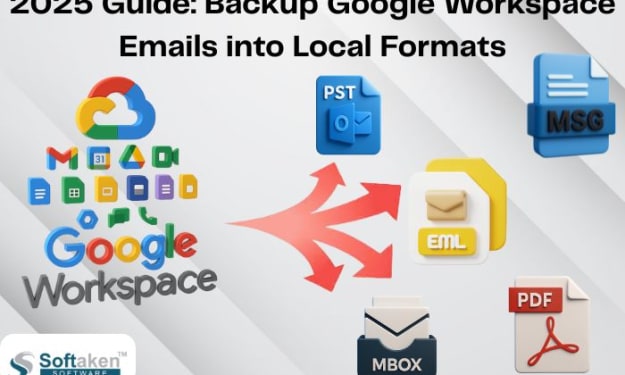
You can quickly download emails, attachments, and more using this app. It's especially helpful for businesses or people who want to save time and manage backups without having to learn how to do it. It also lets you save emails in several formats, such as PST, EML, MBOX, and more, so you can read them in different email programs.
Google Takeout's manual backup works fine, but a product like Google Apps Backup makes things easier and gives you more control.
For More Information, Check Out this Video
In The End
It doesn't have to be hard to make a local copy of your Google Workspace data. It doesn't matter if you do it by hand with Google Takeout or with a program that saves you time; the most essential thing is that you keep your information safe, secure, and easy to get to in the future.
Commence employing the method that appears most appropriate to you. Keep in mind that backing up your data isn't simply for emergencies. It's a good habit that makes you feel better.
About the Creator
Patrick Myers
I'm Patrick Myers, a digital marketing strategist and content writer. I merge analytics with creativity to craft engaging content, boost SEO, enhance visibility, and drive results through innovation.
Keep reading
More stories from Patrick Myers and writers in 01 and other communities.
The Human Need for Connection: Friendship, Love, and Belonging
Humans are fundamentally social beings. From early childhood friendships to deep emotional bonds formed in adulthood, the relationships we build shape our emotional well-being, identity, and resilience. Meaningful connection helps people feel understood, valued, and supported, especially during periods of stress or personal change. Friendship and love are not optional aspects of life; they are essential human needs that contribute to psychological stability and long-term fulfillment. In broader cultural conversations about companionship, references may sometimes appear to concepts such as a Real Love Doll, often reflecting discussions about loneliness or simulated presence rather than genuine human exchange. Ultimately, these conversations reinforce how vital authentic, emotionally reciprocal relationships remain in sustaining true well-being.
By James Mburu4 days ago in 01
Compose Multiplatform for iOS Production Readiness in 2026
Engineering leaders must evaluate Kotlin Multiplatform today. The cross-platform UI debate has shifted recently. It is no longer about if it works. The focus is now on maintenance at scale. Compose Multiplatform (CMP) for iOS has reached a critical tipping point. Developers can share business logic and the UI layer. This works across both Android and iOS platforms. It provides a unified codebase for your team. It avoids the lag of web-based wrappers. It also lacks the overhead found in Flutter. This guide evaluates readiness for technical decision-makers. We focus on long-term stability and development speed.
By Devin Rosario2 days ago in 01



Comments
There are no comments for this story
Be the first to respond and start the conversation.