
Beyond the Refresh Button: How to Actually Speed Up Your PC in 2026
How to Actually Speed Up Your PC in 2026

We’ve all been there—staring at a spinning circle while a simple app takes ages to load. In 2026, our PCs are handling more AI-integrated software and heavier browser tasks than ever before. Most people think their hardware is getting old, but more often than not, it's just buried under layers of digital "junk." After spending weeks troubleshooting my own system’s lag, I realized that PC optimization isn't just about deleting a few files—it’s about a smarter workflow. In this guide, I’m sharing the exact steps I used to reclaim my computer’s speed.
Why Does Your PC Slow Down Over Time?
Before we jump into the "how," let’s talk about the "why." Every time you browse the web, install a game, or even update your Windows/Mac, your system creates temporary logs. Think of it like a kitchen; if you cook every day but never take out the trash, eventually, you won't have space to move.
In 2026, many applications are "resource-heavy." They stay open in the background, eating up your RAM even when you aren't using them. This is why a PC that felt like a rocket last year might feel like a turtle today.
Step 1: The "Deep Clean" Strategy
Don't just empty your recycle bin and call it a day. You need to go deeper.
Clear System Cache: Use the built-in Disk Cleanup tool or Storage Sense. It can often find 5-10GB of useless "Update Logs" that are just sitting there.
The Downloads Folder: This is the most ignored part of a PC. We download PDFs and installers, use them once, and forget them. Sort by "Size" and delete those heavy files.
Step 2: Taming Your Startup Apps
One of the biggest reasons for a slow boot-up is a crowded "Startup" list. Apps like Spotify, Steam, or even some printer drivers think they are important enough to start the moment you turn on your PC.
How to fix: Open Task Manager (Ctrl+Shift+Esc), go to the "Startup" tab, and disable anything you don't need immediately. This alone can save you 20-30 seconds of boot time.
Step 3: Modern Storage Maintenance (SSD vs HDD)
If you are still using an old Hard Drive (HDD) in 2026, my first advice is to upgrade to an SSD. But if you already have an SSD, remember that it needs breathing room. An SSD that is 95% full will perform significantly slower than one that has 25% free space.
I personally use tools like HDopti to monitor my drive's health. It helps in identifying which sectors are slowing down and automates the optimization process, which is a lifesaver for someone who doesn't have time to do it manually every week.
Step 4: Drivers and Security
Outdated drivers are like old maps; your hardware won't know the best route to take. In 2026, GPU and Chipset drivers are updated frequently to handle new AI features in Windows. Ensure your drivers are up to date. Also, avoid having two Antivirus programs running at the same time—they will fight each other and kill your performance.
The Role of AI in 2026 Optimization
We are living in an era where AI can now manage our PCs. Modern optimization tools can now predict when a system might crash based on your usage patterns. This "Proactive Maintenance" is the future. Instead of fixing a slow PC, these tools prevent it from getting slow in the first place.
Conclusion
At the end of the day, your PC is a tool, and like any tool, it requires regular maintenance to stay sharp. Whether you are a hardcore gamer or a remote professional, these techniques—from managing startup apps to using efficient services like HDopti—will ensure you aren't held back by your hardware.
Don't wait for the "Blue Screen of Death" to take action. Start with a simple cleanup today, and you’ll notice the difference in every click. It’s not just about speed; it’s about making your digital life frustration-free.
About the Creator
Keep reading
More stories from Muhammad Owais and writers in Futurism and other communities.
Best Free Face Swap of 2026 + AI Image Upscaler
Looking for a fun way to create hilarious memes or unique profile pictures? Face swapping lets you place a face from one photo onto another, and the results in 2026 are more realistic than ever. The problem is that many online tools are either hidden behind a paywall, produce blurry results, or are complicated to use.
By Muhammad Owais11 days ago in Futurism
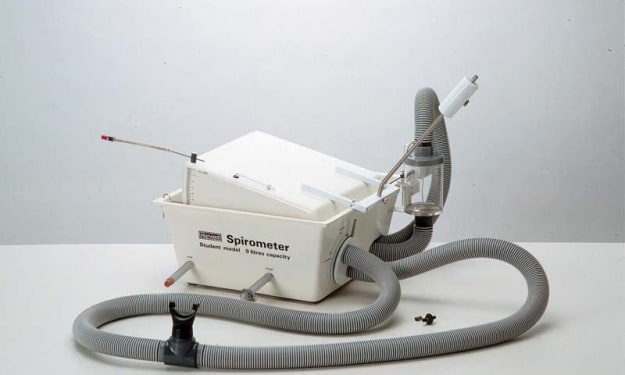
Spirometer Market Outlook: Respiratory Care Demand and Growth Opportunities
Rising prevalence of respiratory diseases such as asthma and COPD, increasing air pollution, and growing awareness of lung health are driving growth in the spirometer market. Expansion of pulmonary function testing in hospitals and clinics supports demand. According to IMARC Group's latest research publication, The global spirometer market size reached USD 1,227.0 Million in 2024. Looking forward, IMARC Group expects the market to reach USD 2,468.2 Million by 2033, exhibiting a growth rate (CAGR) of 7.67% during 2025-2033.
By James Whitman3 days ago in Futurism
Writing About Writing: The Rainbow Trap
The good thing about living in modern times is that LGBTQ representation in media is increasing. Not just in niche and Independant media, either, but also in mainstream media. Books, movies, TV shows, comics... they're finally catching on that LGBTQ+ people form a significant part of their audience, and deserve to see themselves on screen and in fiction, not just as victims in documentaries and true crime shows.
By Natasja Rose7 days ago in Writers



Comments
There are no comments for this story
Be the first to respond and start the conversation.